Help center · Locations and keywords · 4 min read
Locations and keywords
Add a location from a Google Maps link, set its grid, time zone and keywords.
Before you start: Trial: one location. Paid plans: more locations, depending on the plan. Role: owner, admin or member.
What this is for
A location is one business on Google Maps, with its own grid, keywords and history.
Steps
- Click + Add location on the Locations page and paste the Google Maps link.
- Open the location with Edit to change the name, grid spacing (km or miles), time zone and whether it is active.
- In the same window, add keywords. Only active keywords are scanned.
- Set the time zone of the business. Automatic scans run at the time you choose in this zone, so pick the zone where the business is.
- To pause a location from scanning, untick Active and save.
What you will see
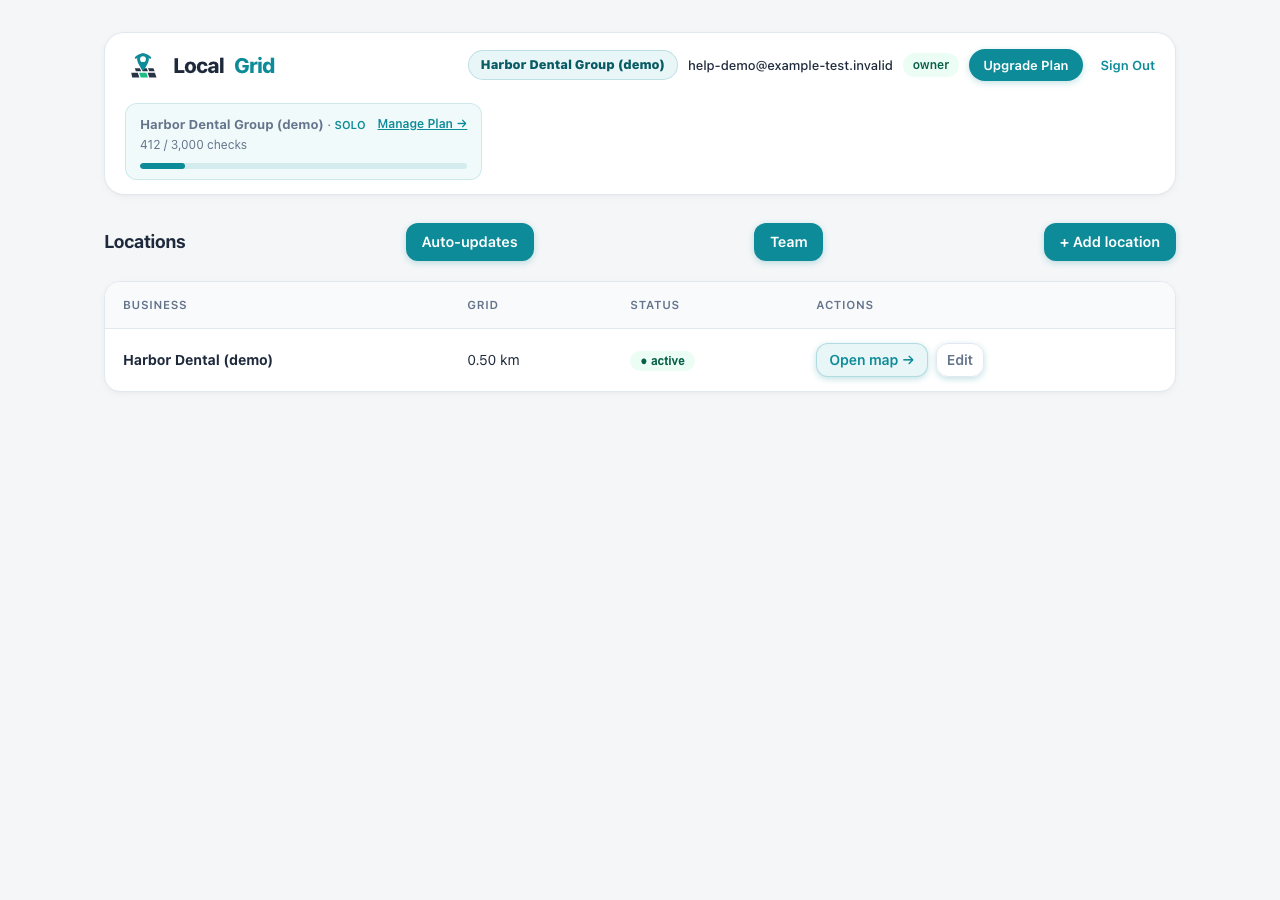
The location appears in the list with its status. A paused location is kept with its history but is not scanned automatically.
Common problems
- “Your plan includes 1 location.” The trial and the Solo plan allow one location. Upgrade the plan or delete a location you no longer need. Deleting a location removes its scan history; this cannot be undone.
- Automatic scans do not run in the right hour. Check the time zone in the location form. Times are shown in that zone.
Error codes covered here: PLAN_LIMIT
Next
Last verified: 2026-10-10 · Local Grid 7a49ba6