Help center · Auto-updates · 5 min read
Auto-updates: schedule scans
Turn on daily or weekly scans for a location, keep a share of budget for manual scans, pause or run now.
Before you start: Paid plan (not the trial). Role: owner, admin or member. The platform must have automatic scans enabled.
What this is for
Scans run on a schedule, so you see changes without pressing Start every time.
Before you start
- A paid plan. Automatic scans are not included in the trial; the controls are visible but disabled there.
- Keep a share of your budget for manual scans (default 20%). Automatic scans do not use it.
Steps
- Open a location with Edit and find Auto-updates.
- Choose a preset: Weekly or Daily. Both start from 06:00 in the location’s time zone.
- For anything else, choose Customize: repeat every day, every week, every 2 weeks or every month; pick days and a time; choose all keywords or only some; set the budget share.
- Save. The next run time and the monthly forecast appear in the block.
What you will see
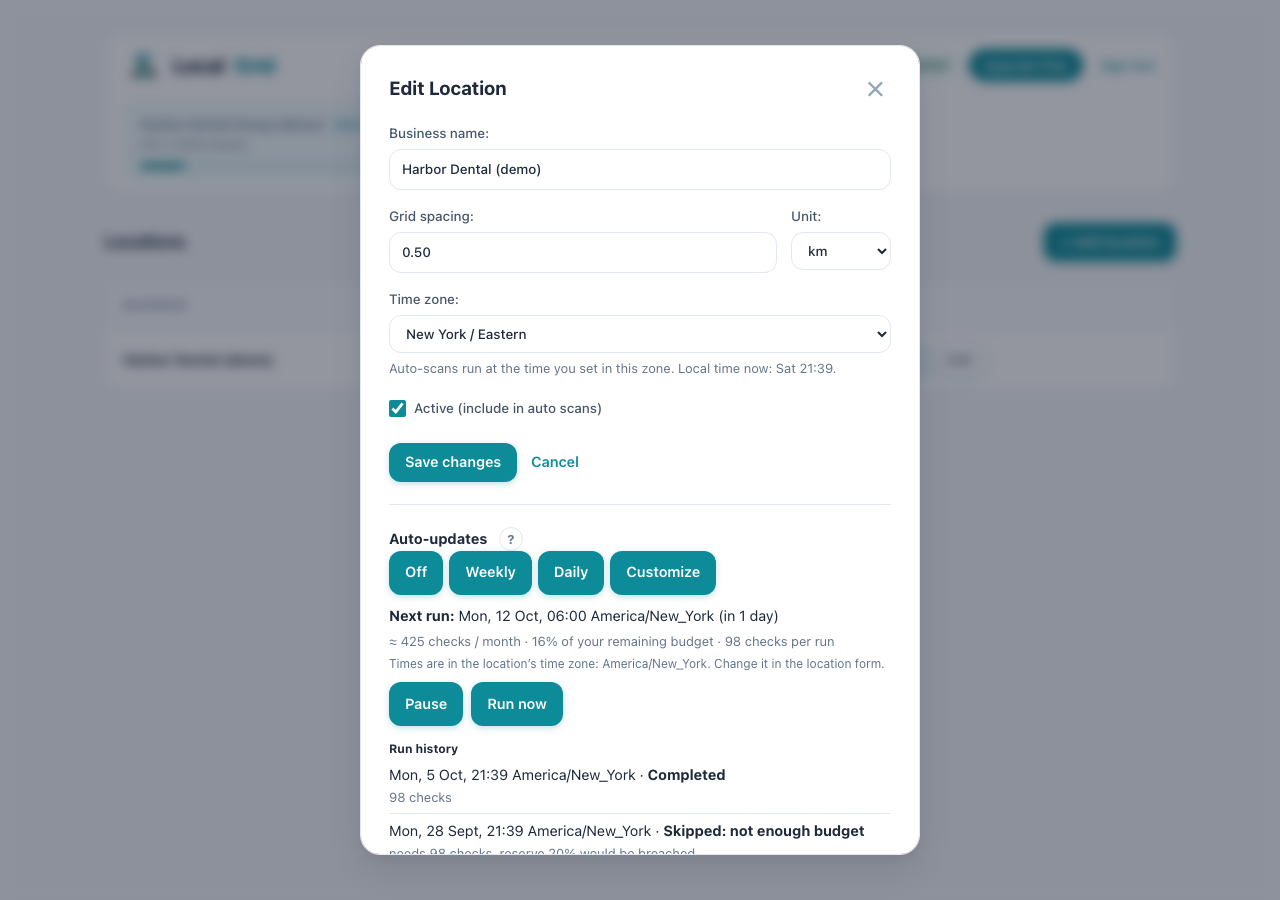
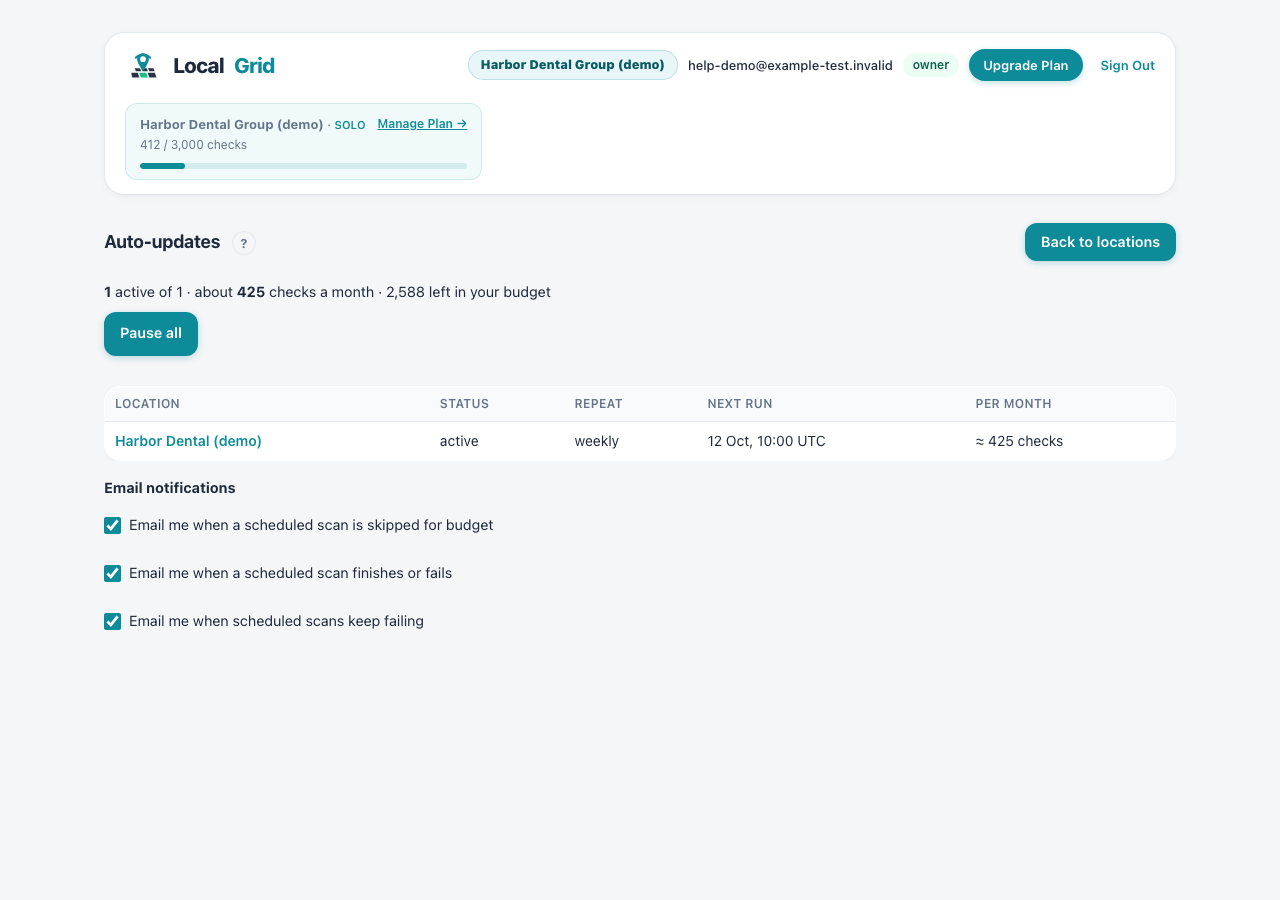
- Next run with the time in the location’s time zone.
- About N checks / month and the share of your remaining budget. A warning appears if the schedule does not fit into what is left.
- Run history. Each run has a status. A skipped run always has a reason, for example “not enough budget” or “daily platform limit reached”.
Common problems
- A run was skipped for budget. The schedule would have used more than the budget left after your reserve. Choose a longer interval, fewer keywords or a smaller grid. You also get an email (you can turn these off in your profile).
- The Weekly and Daily buttons are disabled. Your plan is the trial, or automatic scans are switched off on the platform. The block says which one.
- I want all scans to stop. Press Pause on the location, or use Pause all on the Auto-updates overview.
Error codes covered here: PLAN_REQUIRED, SCHEDULER_OFF
Next
Last verified: 2026-10-10 · Local Grid 7a49ba6